> ## Documentation Index
> Fetch the complete documentation index at: https://nango-marcin-nan-6306-mcp-tool-connections-get.mintlify.site/llms.txt
> Use this file to discover all available pages before exploring further.
# Paychex - How do I link my account?
# Overview
To authenticate with Paychex, you will need:
1. **API Key** - A unique identifier for your application on Paychex.
2. **Client Secret** - A confidential key used to authenticate the identity of your application (client).
This guide will walk you through generating your **Client Credentials** within Paychex.
### Prerequisites:
* You must have an account with Paychex.
* Ensure you have **Admin** permissions in your company's Paychex instance (or that someone has shared their access with you).
### Instructions:
#### Step 1: Generating Your Client Credentials
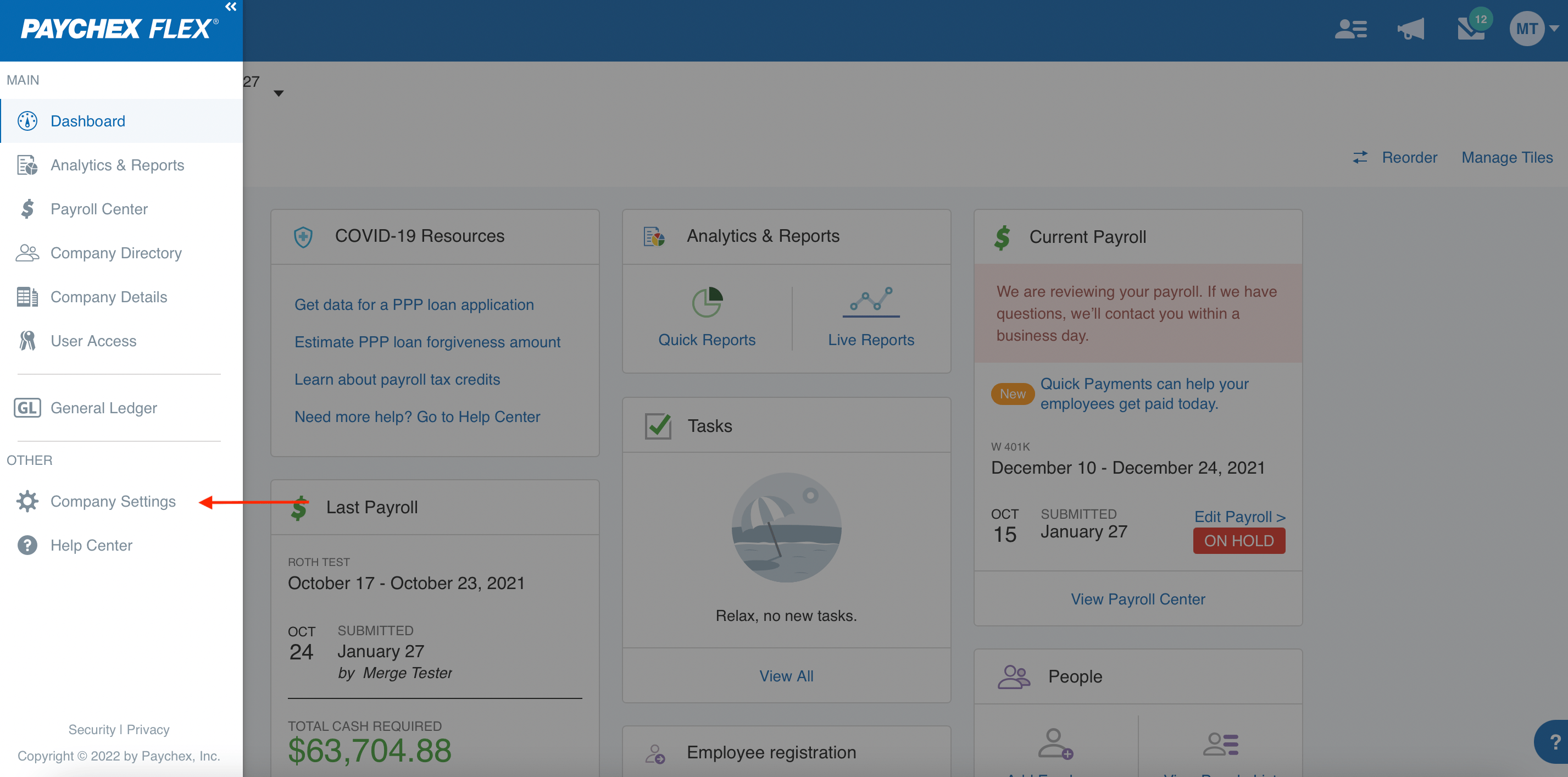
1. Log in to your Paychex account and go into **Company Settings**.
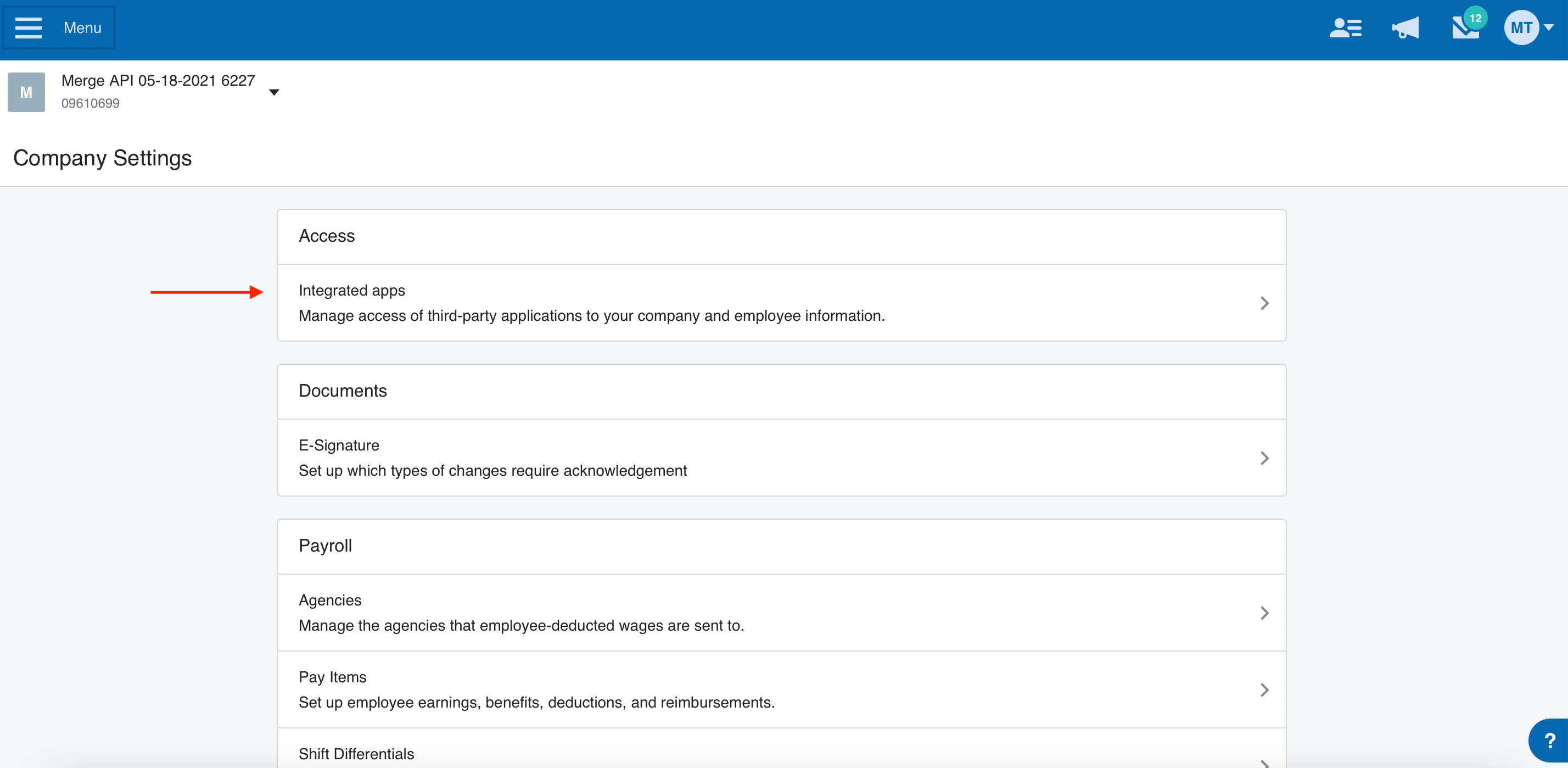
 2. Select **Integrated apps**.
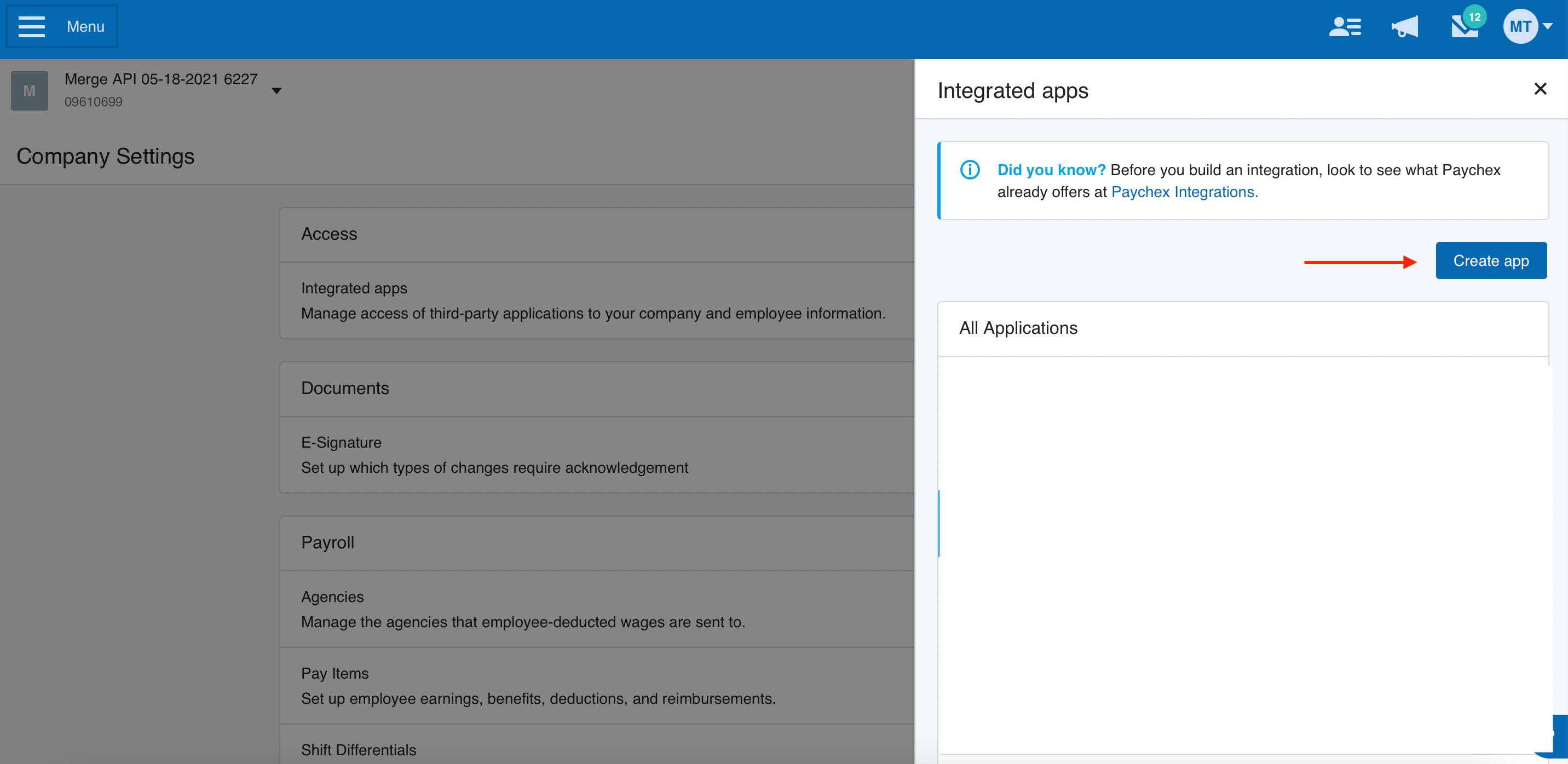
 3. Click **Create App**.
 4. Enter an **Application Name** and **Description**.
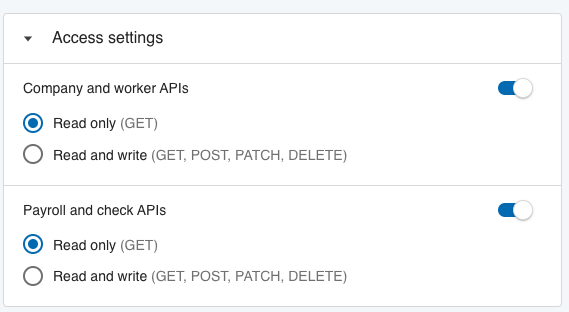
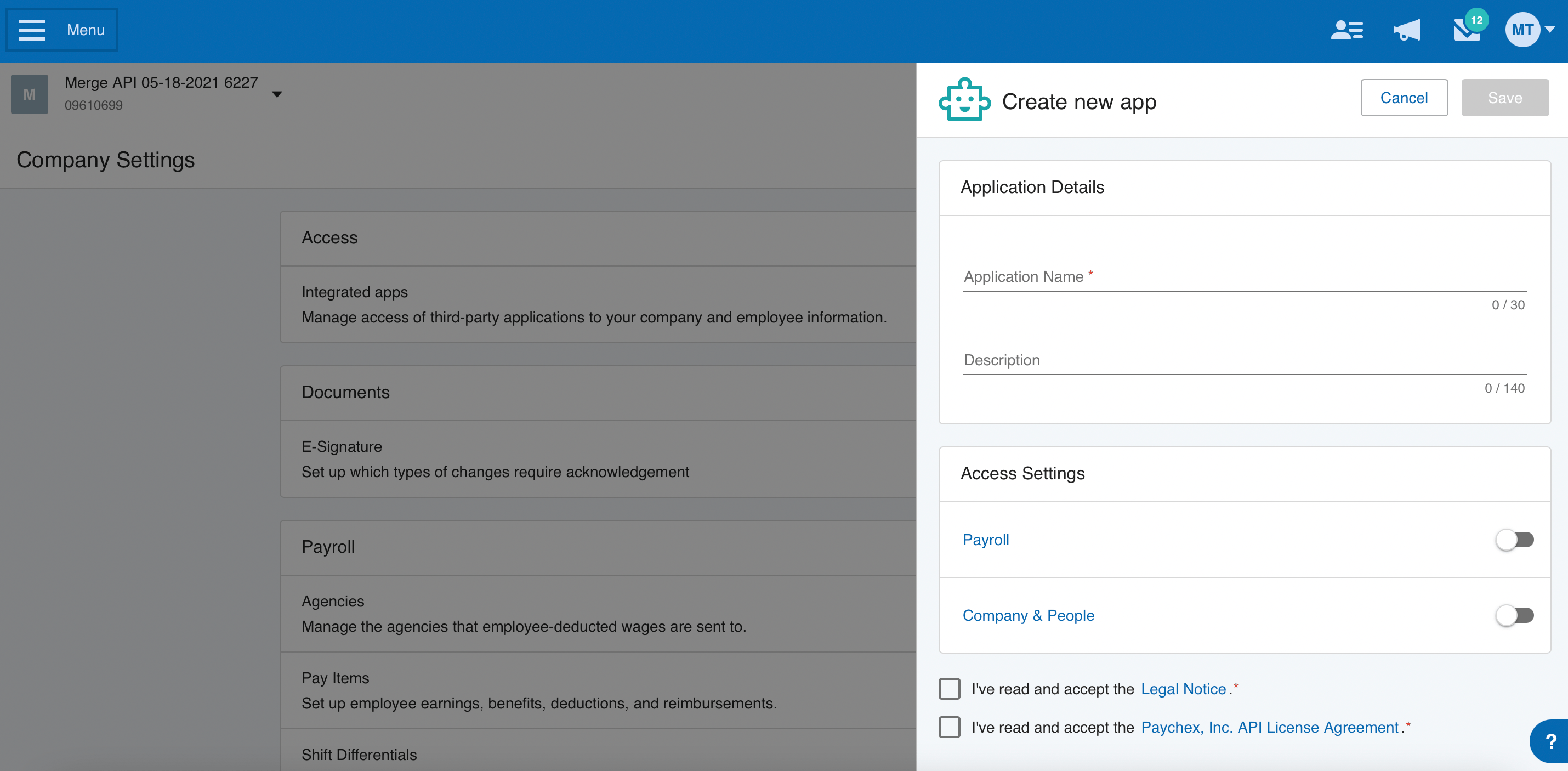 5. Select **Read only** for the **Company and worker APIs**, If you also need to sync payroll information, select **Read only** for the **Payroll and check APIs**. If you need access to Payroll data and do not see it as a toggle, contact your account manager for help.
 6. **Accept** the Legal Notice and Paychex Inc, API License Agreement, and **Save**.
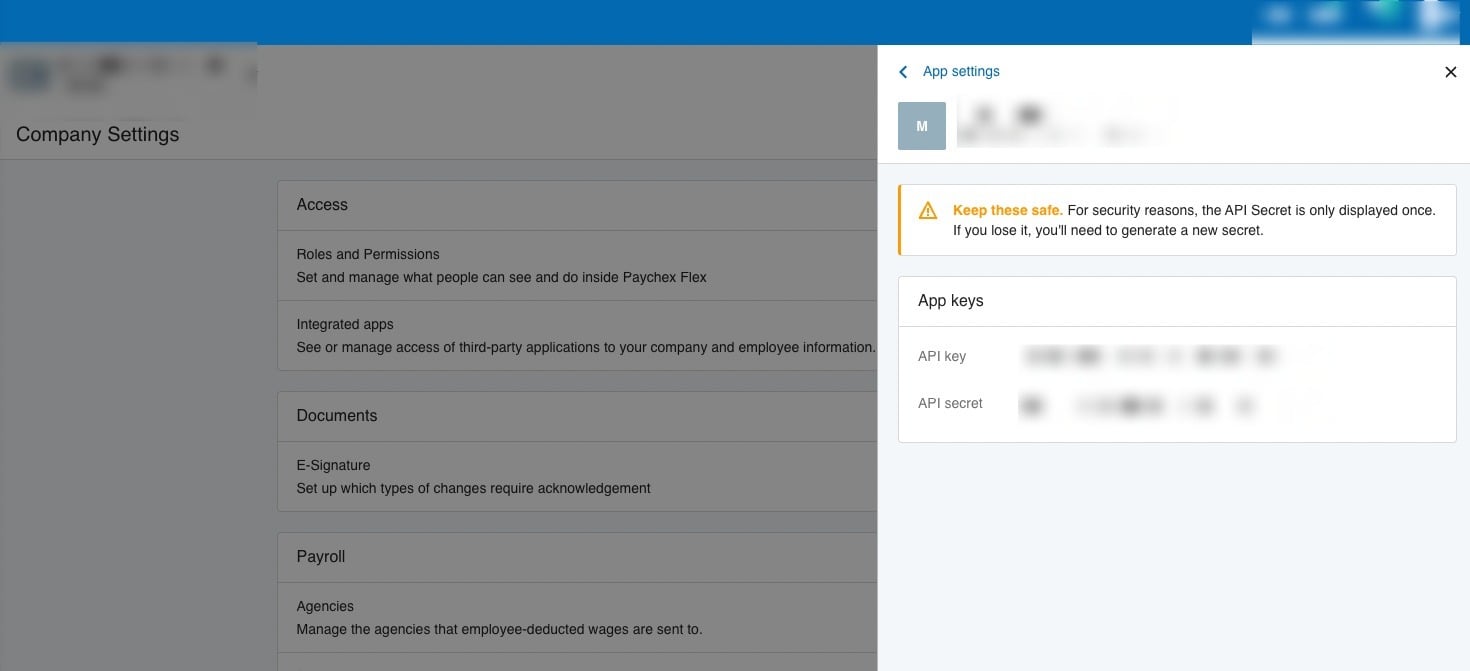
7. A pair of Client Credentials, **API Key** and **Client Secret**, will be displayed to you.
6. **Accept** the Legal Notice and Paychex Inc, API License Agreement, and **Save**.
7. A pair of Client Credentials, **API Key** and **Client Secret**, will be displayed to you.
 #### Step 2: Enter credentials in the Connect UI
Once you have your **API Key** and **Client Secret**:
1. Open the form where you need to authenticate with Paychex.
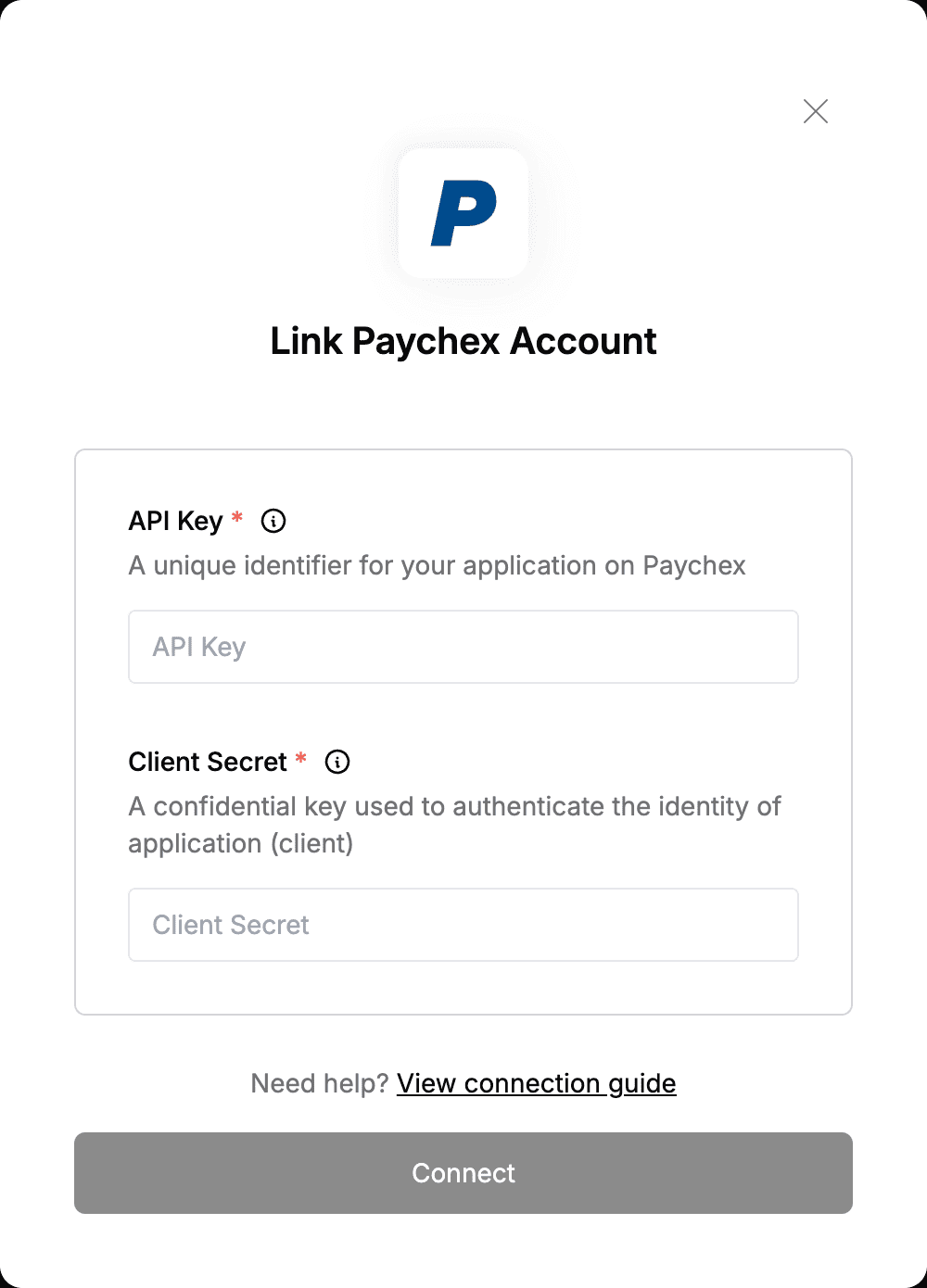
2. Enter your **API Key** and **Client Secret** in their respective fields.
3. Submit the form, and you should be successfully authenticated.
#### Step 2: Enter credentials in the Connect UI
Once you have your **API Key** and **Client Secret**:
1. Open the form where you need to authenticate with Paychex.
2. Enter your **API Key** and **Client Secret** in their respective fields.
3. Submit the form, and you should be successfully authenticated.
 You are now connected to Paychex.