> ## Documentation Index
> Fetch the complete documentation index at: https://nango-marcin-nan-6306-mcp-tool-connections-get.mintlify.site/llms.txt
> Use this file to discover all available pages before exploring further.
# Namely (PAT) - How do I link my account?
# Overview
To authenticate with Namely (PAT), you need:
1. **Company Name** - Your company name, used to uniquely identify and access your organization's Namely instance.
2. **Personal Access Token** - A key that grants secure access to the API, enabling authorized applications to interact with Namely resources and services.
This guide will walk you through finding your **Company Name** and generating your **Personal Access Token** within Namely.
### Prerequisites:
* You must have an account with Namely.
* You must have access to the **API** menu in your Namely account. If you don't see it, contact your Namely administrator or client success manager to obtain the necessary permissions.
### Instructions:
#### Step 1: Finding Your Company Name
1. Log in to your Namely instance.
* Look at the URL in your browser's address bar. Your **Company Name** is the text after `https://` and before `.namely.com`. For example, if the URL in your address bar is `https://example.namely.com`, your **Company Name** is `example`.
#### Step 2: Generating Your Personal Access Token
1. Log in to your Namely instance.
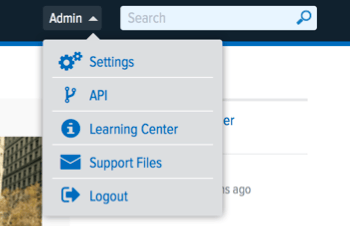
2. Click the **Admin** dropdown and select **API**.
 3. Click the **Personal Access Tokens** tab, select **New Access Token**, enter a unique name, and click **Create**.
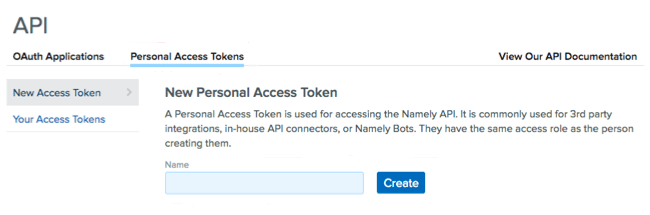 4. Your **Personal Access Token** will be generated for you.
#### Step 3: Enter credentials in the Connect UI
Once you have your **Company Name** and **Personal Access Token**:
1. Open the form where you need to authenticate with Namely (PAT).
2. Enter your **Company Name** and **Personal Access Token** in their designated fields.
3. Submit the form, and you should be successfully authenticated.
4. Your **Personal Access Token** will be generated for you.
#### Step 3: Enter credentials in the Connect UI
Once you have your **Company Name** and **Personal Access Token**:
1. Open the form where you need to authenticate with Namely (PAT).
2. Enter your **Company Name** and **Personal Access Token** in their designated fields.
3. Submit the form, and you should be successfully authenticated.
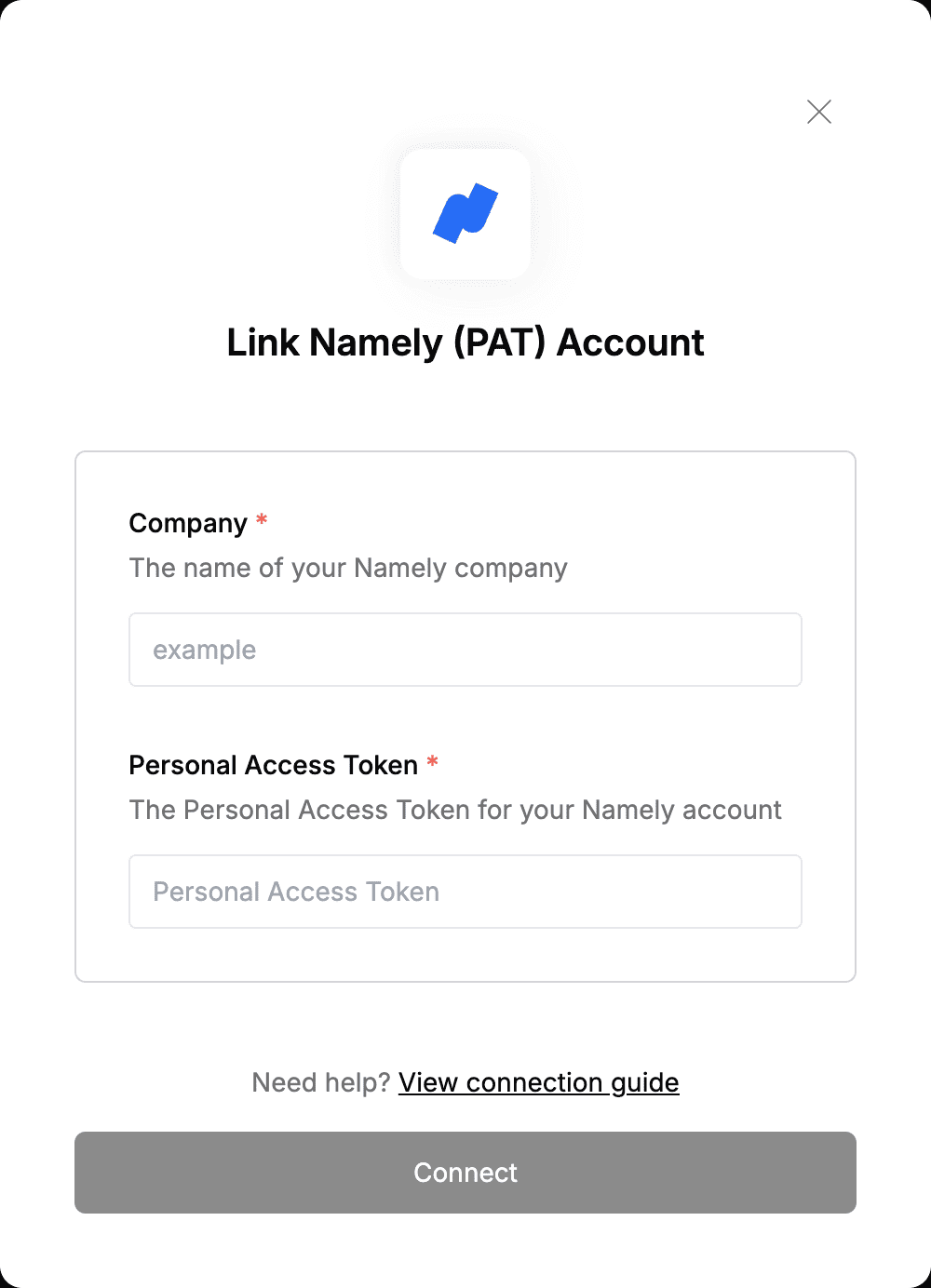 You are now connected to Namely (PAT).