> ## Documentation Index
> Fetch the complete documentation index at: https://nango-marcin-nan-6306-mcp-tool-connections-get.mintlify.site/llms.txt
> Use this file to discover all available pages before exploring further.
# Okta (API Token) - How do I link my account?
# Overview
To authenticate with Okta using an API Token, you need:
1. **API Token** - A token used with Okta's SSWS authentication scheme to authorize requests.
2. **Okta Domain** - The full hostname of your Okta organization (e.g. `dev-12345678.okta.com`).
This guide will walk you through generating an API token in the Okta Admin Console.
### Prerequisites:
* You must have an Okta account with admin access.
An API token inherits the privilege level of the admin account that creates it. Okta recommends creating a dedicated service account for tokens used by integrations, rather than using a personal admin account. Deactivating that admin user immediately deprovisions the token.
### Instructions:
#### Step 1: Generating your API token
1. Log in to your [Okta Admin Console](https://login.okta.com/).
2. In the left sidebar, navigate to **Security** > **API**.
3. Click the **Tokens** tab, then click **Create token**.
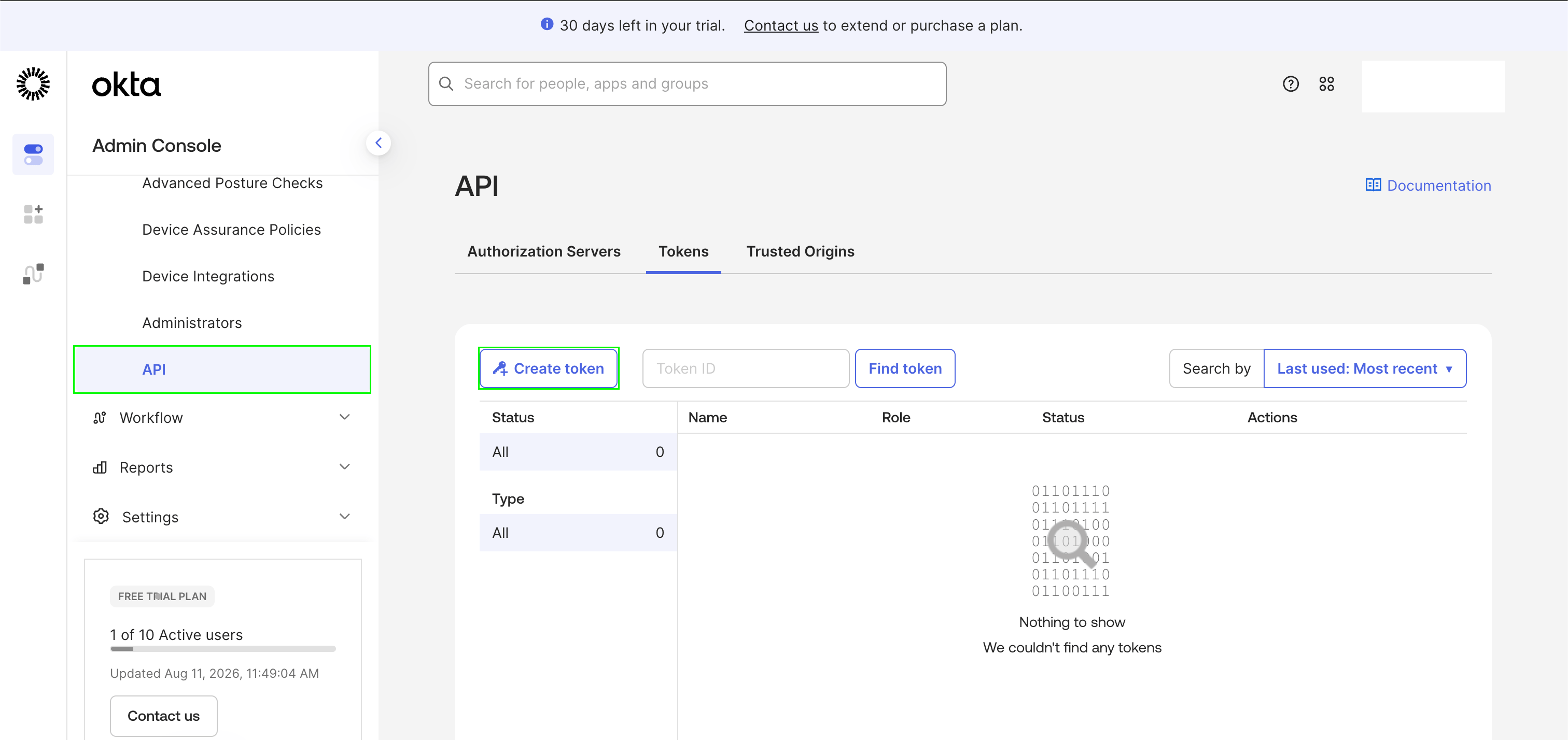 4. Enter a name for the token. Under network zones, leave **Any IP** selected, or restrict it to [Nango's public IP addresses](/guides/platform/security#ip-allowlist) if you want to limit the token to calls coming from Nango. Click **Create token**.
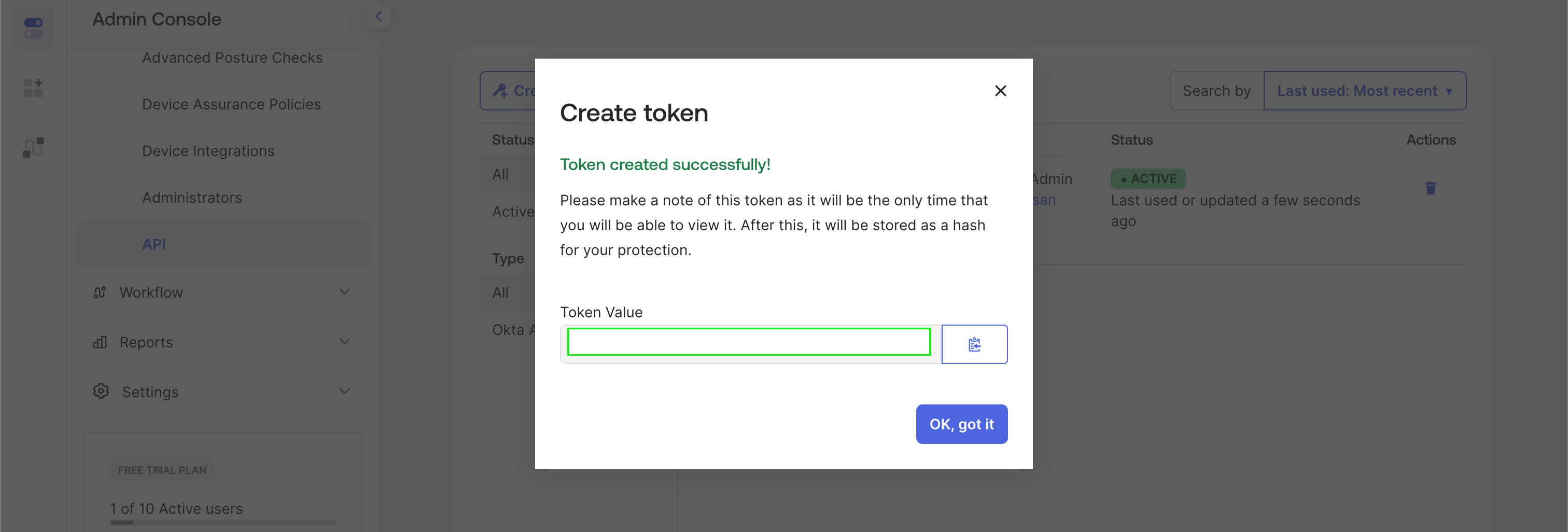
5. Copy the token value immediately — Okta only shows it once.
4. Enter a name for the token. Under network zones, leave **Any IP** selected, or restrict it to [Nango's public IP addresses](/guides/platform/security#ip-allowlist) if you want to limit the token to calls coming from Nango. Click **Create token**.
5. Copy the token value immediately — Okta only shows it once.
 #### Step 2: Finding your Okta Domain
Your Okta Domain is the full hostname of your Okta organization.
* In the Admin Console, your browser's address bar will show a URL like `https://dev-12345678-admin.okta.com`.
* Your **Okta Domain** is the hostname without `https://` and without `-admin` (e.g., `dev-12345678.okta.com`).
#### Step 3: Enter credentials in the Connect UI
Once you have your **API Token** and **Okta Domain**:
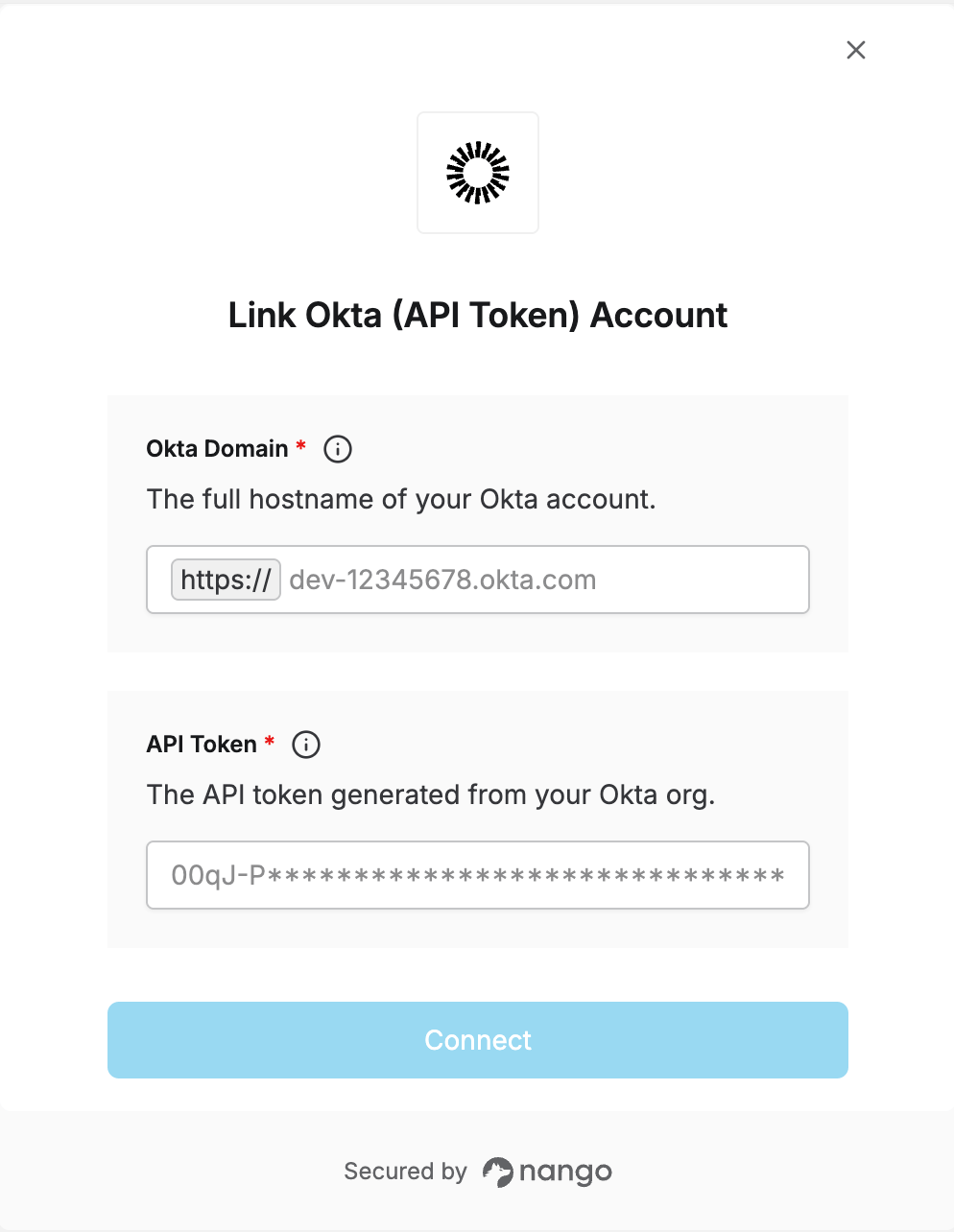
1. Open the form where you need to authenticate with Okta (API Token).
2. Enter your **API Token**.
3. Enter your **Okta Domain** as the full hostname (e.g., `dev-12345678.okta.com`).
4. Submit the form, and you should be successfully authenticated.
#### Step 2: Finding your Okta Domain
Your Okta Domain is the full hostname of your Okta organization.
* In the Admin Console, your browser's address bar will show a URL like `https://dev-12345678-admin.okta.com`.
* Your **Okta Domain** is the hostname without `https://` and without `-admin` (e.g., `dev-12345678.okta.com`).
#### Step 3: Enter credentials in the Connect UI
Once you have your **API Token** and **Okta Domain**:
1. Open the form where you need to authenticate with Okta (API Token).
2. Enter your **API Token**.
3. Enter your **Okta Domain** as the full hostname (e.g., `dev-12345678.okta.com`).
4. Submit the form, and you should be successfully authenticated.
 You are now connected to Okta (API Token).