> ## Documentation Index
> Fetch the complete documentation index at: https://nango-marcin-nan-6306-mcp-tool-connections-get.mintlify.site/llms.txt
> Use this file to discover all available pages before exploring further.
# AWS IAM - How do I link my account?
# Overview
To authenticate with AWS IAM, you will need:
1. **Access Key ID** - This is a unique identifier that specifies the IAM user or role making the request.
2. **Secret Access Key** - This is a confidential key that acts as a password used to sign API requests made to AWS IAM services.
This guide will walk you through finding the API Key within AWS IAM.
### Prerequisites:
* You must have a registered account with AWS.
### Instructions:
#### Step 1: Finding Your pair keys
1. **Log in** to your AWS IAM console.
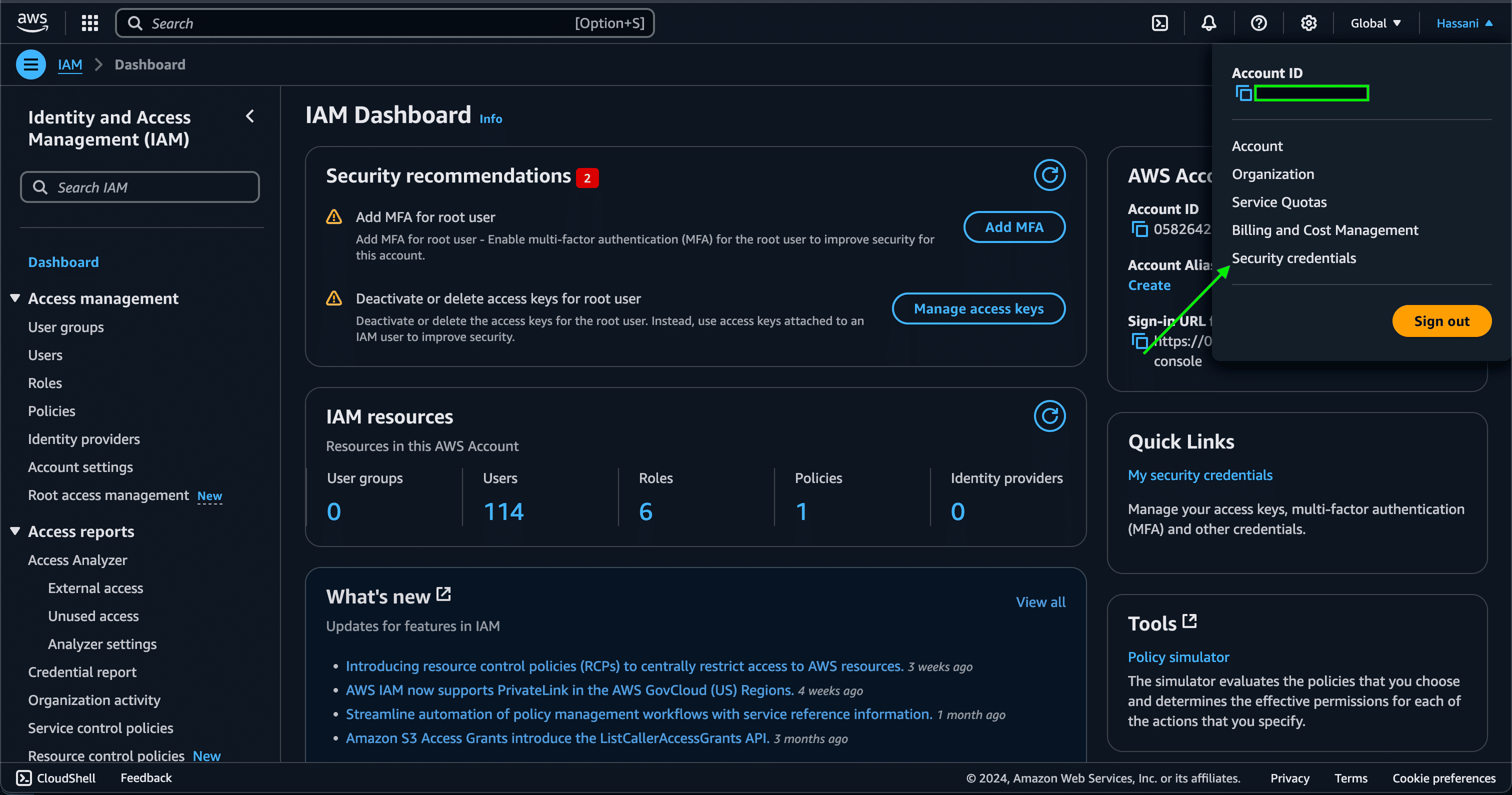
2. In the navigation bar on the upper right, select your user name, and then select **Security credentials**.
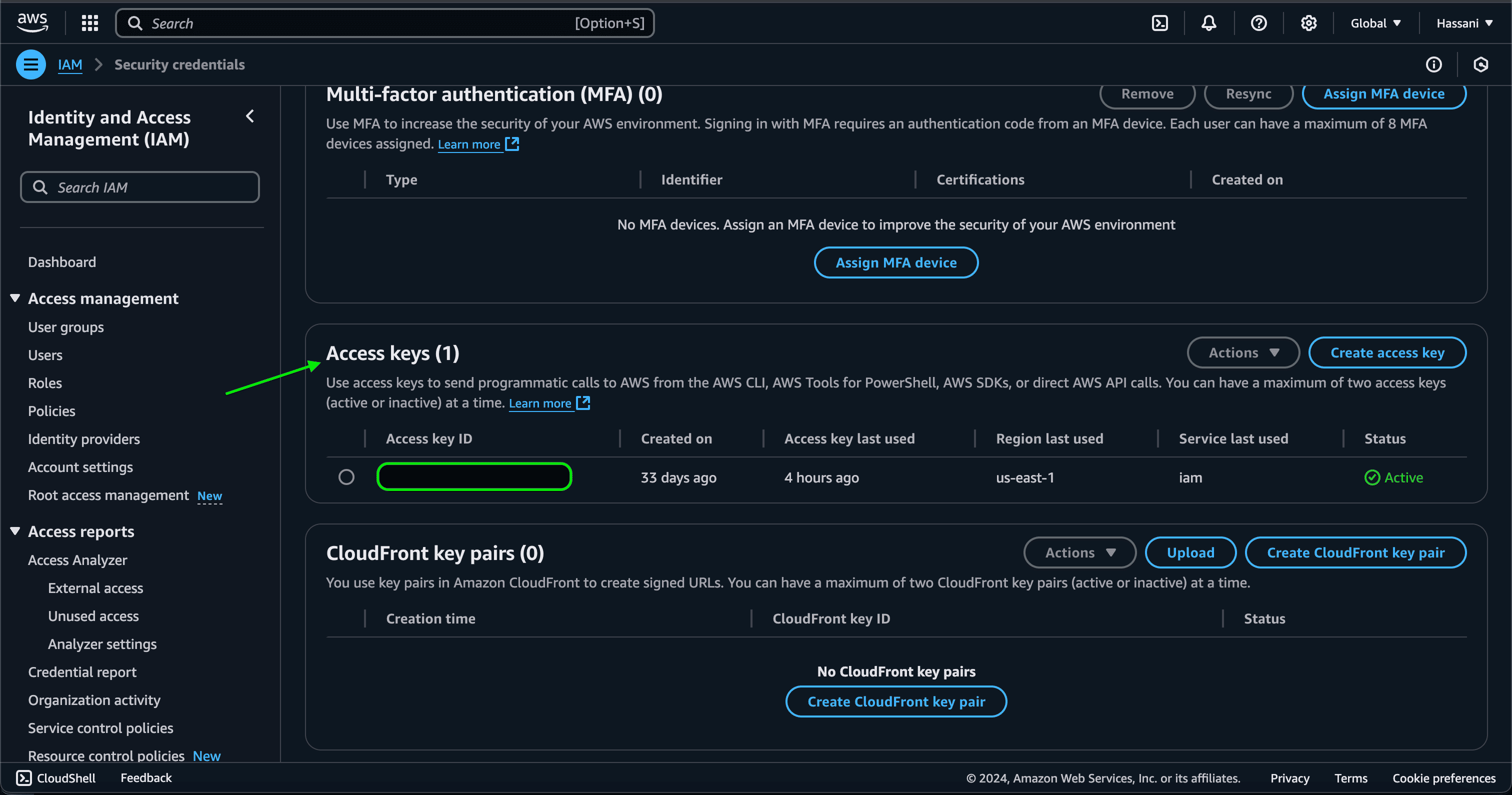
 3. In the **Access keys** section, click **Create access key**. If you already have two access keys, this button is deactivated and you must delete an access key before you can create a new one.
 4. On the **Access key best practices & alternatives** page, choose your use case to learn about additional options which can help you avoid creating a long-term access key. If you determine that your use case still requires an access key, click **Other** and then click **Next**.
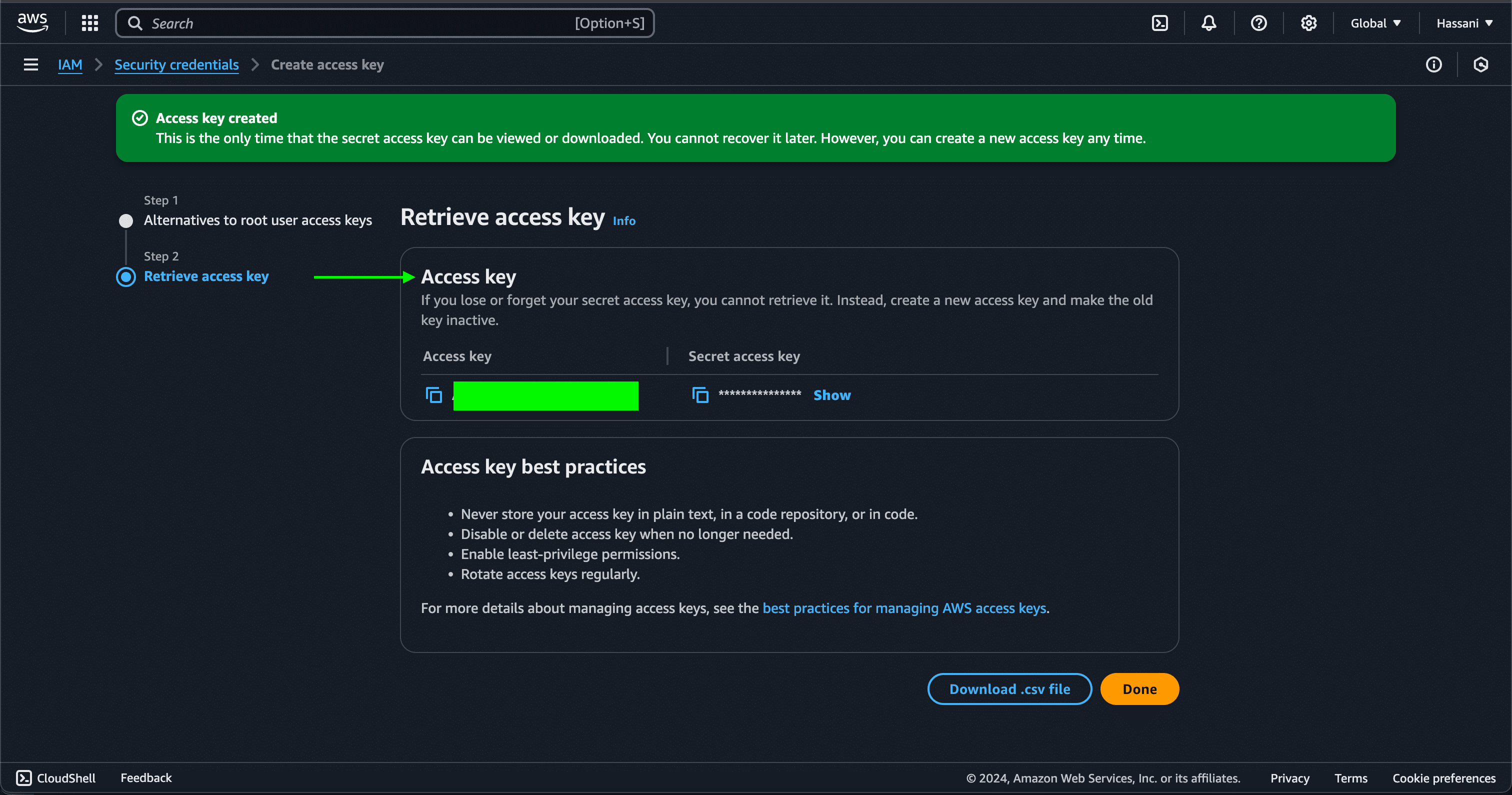
5. Once you are done, a pair of both **Access** and **Secret Access** keys will be generated.
4. On the **Access key best practices & alternatives** page, choose your use case to learn about additional options which can help you avoid creating a long-term access key. If you determine that your use case still requires an access key, click **Other** and then click **Next**.
5. Once you are done, a pair of both **Access** and **Secret Access** keys will be generated.
 #### Step 2: Finding Your region host
1. You can obtain this directly from the web address bar.
#### Step 2: Finding Your region host
1. You can obtain this directly from the web address bar.
 #### Step 3: Enter credentials in the Connect UI
Once you have these keys and the region:
1. Open the form where you need to authenticate with AWS IAM.
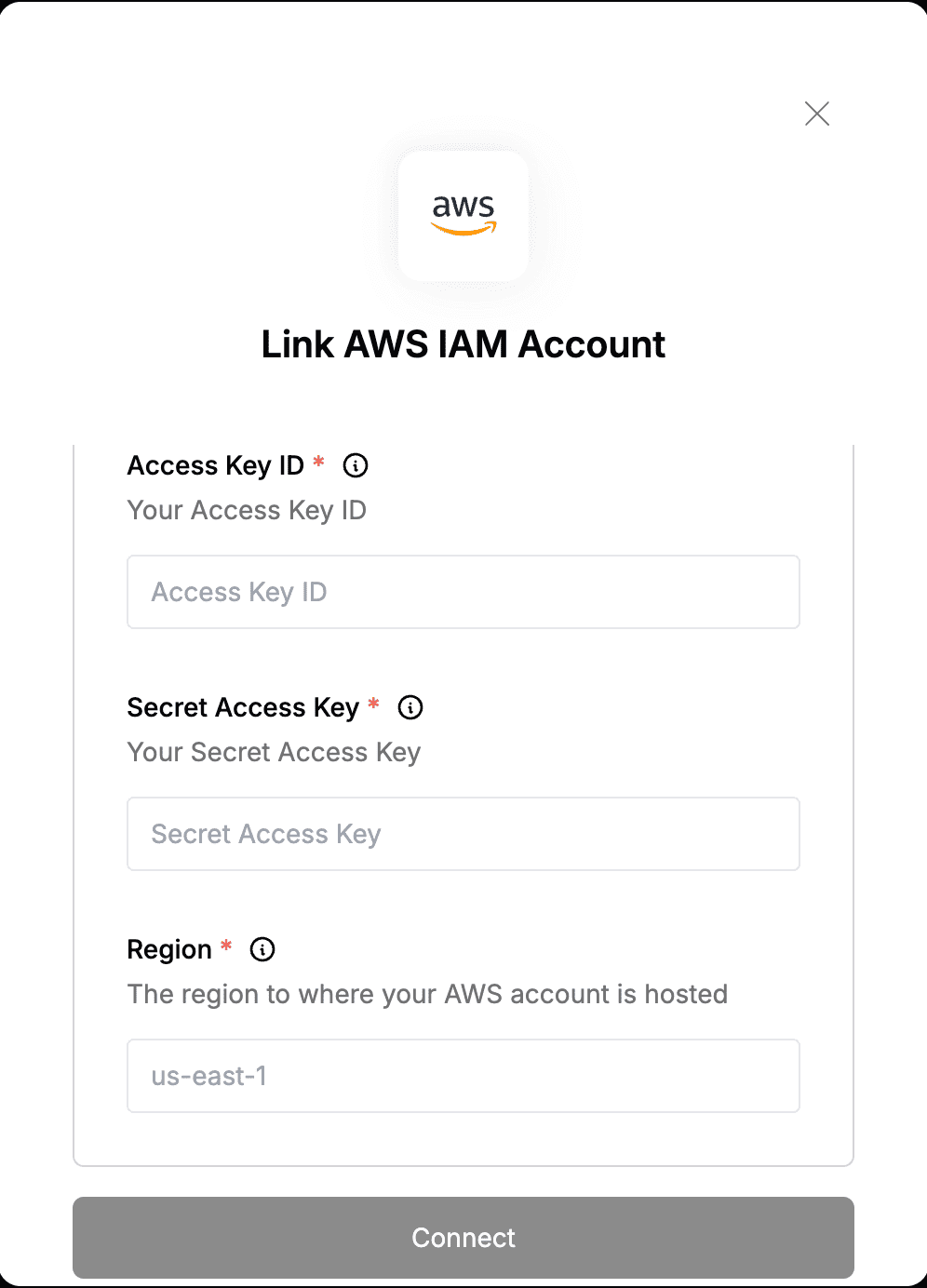
2. Enter the **Access Key ID**, **Secret Access Key**, and **Region** in their respective fields.
3. Submit the form, and you should be successfully authenticated.
#### Step 3: Enter credentials in the Connect UI
Once you have these keys and the region:
1. Open the form where you need to authenticate with AWS IAM.
2. Enter the **Access Key ID**, **Secret Access Key**, and **Region** in their respective fields.
3. Submit the form, and you should be successfully authenticated.
 You are now connected to AWS IAM.